A native little utility for Mac
Different format.
Same familiar
place.
Convert, crop, and compress your files. Right beside the original.
Less opening apps.
More getting on with it.
Your files are already in Finder. Start there, and stay in your flow.
-
afternoon.heic⇧ Shift01
Bring a file along.
Start dragging a file in Finder, then hold Shift to bring up the format wheel.
-
PNGJPGWebP02
Give it a new job.
Drop onto a format. Add Option to switch to tools like crop, resize, or trim.
-
03OriginalNew copy
Find it right there.
The new copy lands beside the original by default. Your original stays untouched.
More of a keyboard person? Open the wheel with ⇧⌘Space in Converty.
A GOOD FIT FOR YOUR FILES
One small app.
Quite a few tricks.
From a photo that needs to be smaller to a video that just needs its sound.
The right image for the occasion.
A lighter photo to share. A crop that gets to the point. A PDF made from a handful of images.
Compress · Resize · Crop · Collage · Remove metadata
A little less clip. A lot more useful.
Trim the start, crop the frame, or keep just the audio. Make your video ready for its next stop.
Compress · Crop · Trim · Change speed · Join · Split
Keep the parts worth listening to.
Switch formats, even out the volume, or trim silence from the edges of a recording.
Compress · Trim · Normalize · Mono / stereo · Trim edge silence
Put your pages in order.
Merge or split PDFs, save pages as images, and extract selectable text. Turn text and Markdown into documents, too.
Text extraction needs selectable text. DOCX output is text-only; no OCR or DOCX input.
Everything, neatly together.
Package a folder for sharing or unpack a supported archive. Your originals stay exactly where you left them.
GZIP takes one file. Extraction checks paths and rejects symbolic and hard links.
Output choices depend on the input file. See the notes below
A quick gesture.
Or room to spread out.
Open the full workspace for batches, a closer edit, and all 21 extra tools.
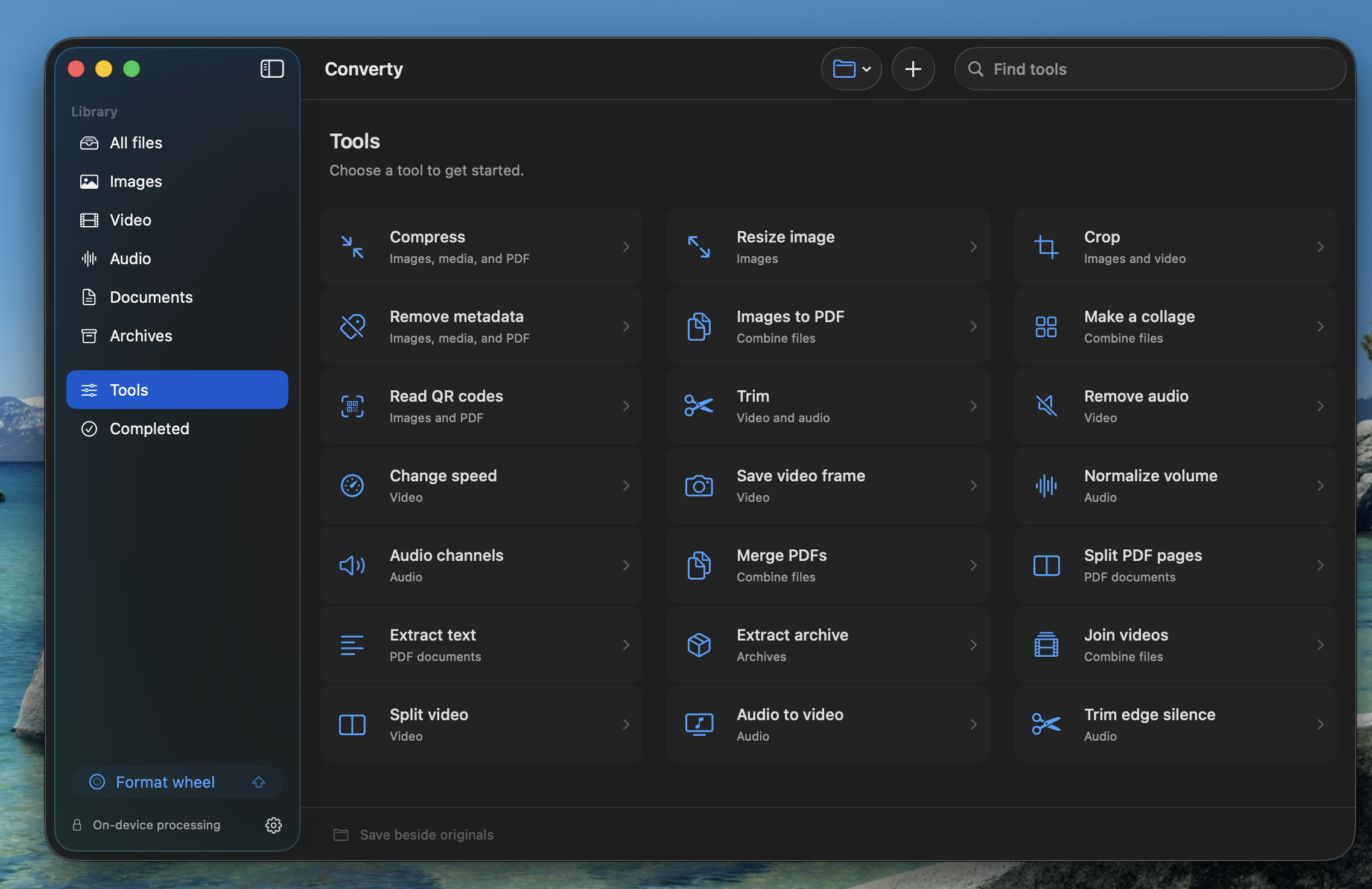
Your Mac does the work.
Files are processed on your device. No uploads, accounts, or analytics.
The original is a keeper.
Every action makes a separate copy. Existing filenames get a safe numeric suffix.
Made to feel like your Mac.
Native controls, keyboard shortcuts, and light or dark appearance. Liquid Glass on macOS 26.

SMALL UTILITY. PRIVATE DOWNLOAD.
Get Converty for Mac.
Buy the early Mac release for a simple one-time payment. Files stay local, and every conversion creates a separate copy beside the original.
Version 0.1.2 · Apple Silicon · macOS 14+
Early release, not notarized by Apple. macOS may block the first
launch.
Installation help
A few good
questions.
Something else on your mind? Support contact details will go here before the paid page ships.
How do I install Converty?
After checkout, download the DMG, open it, drag Converty into Applications, and open the app from there. You do not need Xcode or developer tools. This early release is not notarized by Apple, so macOS may block its first launch. If you choose to trust the build, follow Apple’s instructions for opening an app from an unidentified developer.
Which Macs does it work on?
The DMG is for Apple Silicon Macs (M1 or newer) running macOS 14 or later. It is currently verified on macOS 26. Intel Macs are not supported by this download, and macOS 14 and 15 still need release testing. The media engine is included, so no separate installation is needed.
Do my files leave my Mac?
No. Conversion and editing run on your Mac using native frameworks and a bundled media engine. There are no file uploads, accounts, or analytics in Converty.
Where does the converted file go?
Beside the original, by default. You can choose a different folder in the app. Combined outputs, like merged PDFs, go beside the first input file. Converty creates a separate copy and adds a number if that filename is already taken.
Can I read or modify the code?
Not right now. Converty is being offered as a paid early Mac download while packaging, signing, and support details settle.